
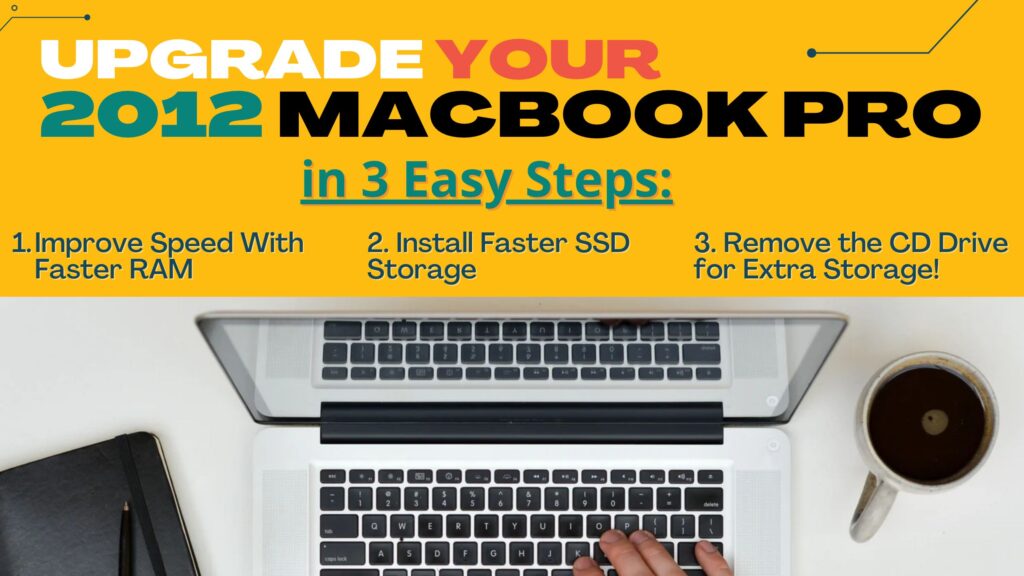
How to Upgrade Mid 2012 Macbook Pro and Turbo-Charge Your Old Macbook!
Here is a cheatsheet on what to buy to upgrade your Mid 2012 MacBook Pro. There are plenty of ways to go about it so I separated them based on price! You can always mix and match these upgrades. Everything I listed here is 100% compatible with the Mid 2012 MacBook Pro (for all i3, i5, and i7 processor models).
Don’t Have a Macbook Pro? Buy a quality refurbished one here: mid-2012 MacBook Pro ($550) from Back Market (on sale NOW for $499!)
Refurbished Mid 2012 MacBook Pro (Already comes with 16 GB RAM and only needs SSD Storage and Blu Ray Upgrade).
PLEASE NOTE: Although the 2011 MacBook Pro can have many similar upgrades, this guide is only verified and tested for the Mid 2012 MacBook Pro! I’ll come up with a guide for the 2011 MacBook Pro HERE once it’s done.
SUB TO MY NEWSLETTER FOR WHEN THAT COMES OUT
Before You Upgrade Your Mid 2012 MacBook Pro – PLEASE READ
IMPORTANT: You can NOT upgrade the RAM for any MacBook Pro made after the Mid 2012 MacBook Pro as Apple soldered in the RAM. If you’re a computer engineer, be my guest.
Not sure what Macbook you have? Here’s a tutorial on to find out your model here:
https://youtu.be/xW3hIZDYyII?t=24
All upgrade instructions are written below.
I do NOT receive any commissions for any items purchased on this page. If you want to donate to me for my effort and help me make more articles like this, hit up my Venmo @UCSanDiego (I’m dead ass that’s my Venmo).
If you decide to buy other 3rd party parts, please do so at your own risk.
Prices are also subject to change!
Best (And Easiest) Option: $339 + Tax
Note: 1TB = 1000GB of storage for photos, videos, apps, and more
This in my opinion is more than enough to keep your Mid 2012 MacBook Pro running for YEARS after you’ve upgraded it. Please note I have tested all these parts on my own MacBook Pro and you should have no issues using them.
1TB SSD (With Storage Transfer Kit + Screwdriver DIY Kit) – $230 + Tax
16 GB 1600 MHz RAM – $79.99 + Tax
New MacBook Pro Battery – $29 + Tax
You can get a digital copy of my upcoming book "Hey!" when you sign up for my newsletter. Book dropping on Nov 2027.
Premium Option: More than $647 plus Tax
If you really want to ball out and create the most expensive Mid 2012 MacBook Pro that will last you run faster than that snail from Turbo and have more storage than your iPhone 12!
Note: 1TB = 1000GB of storage for photos, videos, apps, and more
2TB SSD Storage (With Storage Transfer Kit+ Screwdriver DIY Kit) – $408.00 + Tax
16 GB 1600 MHz RAM – $79.99 + Tax
New Mid 2012 MacBook Pro Battery – $29 + Tax
Blu Ray Drive for MacBook Pro – $130 + Tax
External 4K Display (Needs USC Type C to USB Type B Adapter) – $??
Budget Option: $216.99
Note: 1TB = 1000GB of storage for photos, videos, apps, and more
480GB SSD Storage (With Storage Transfer Kit + Screwdriver DIY Kit) – $129.00 + Tax
12 GB 1600 MHz RAM – $58.99 + Tax
New MacBook Pro Battery – $29 + Tax
Cheapest Option: $123.79
This the option for those who really want the bare essentials when upgrading their Mid 2012 MacBook Pro. I would recommend at least going with the budget option to make the most of your upgrade project. It has more storage, is faster than the 8 GB RAM Model and the battery upgrade means the battery needs fewer charges throughout the day.
Up to you though.
250GB SSD (With Storage Transfer Kit) – $82.00 + Tax
8 GB 1600 MHz RAM – $41.79 + Tax
Remove CD Drive (Technically you could sell it)
No New Battery (Keep your mac plugged in though because your battery life is gonna suck)
The Game Plan on How to Upgrade Your Mid 2012 MacBook Pro!
If you want the cheat sheet on how to upgrade your Mid 2021 Macbook Pro, here it is:
Get a mid-2012 MacBook Pro ($550) from Back Market (on sale NOW for $499!) or use the one you have, upgrade the RAM from 4GB to 8GB ($60) and change the hard drive (HDD) to a 1TB SDD Storage ($150) so that it’s faster and has more storage.
If you want INSANE speed upgrades, upgrade the ram up to 16 GB ($79.99).
Then you have to replace the battery to improve how much charge it can hold ($40).
Finally, if you really want to, you can replace the dvd disk for a blu ray disk ($130).
If you don’t want to play DVDs you can remove the DVD player and instead add even more storage (1TB for $150). In order to do so you will need a caddy to hold the SSD in place!
If you’re happy with the storage, you can still take out the DVD player to reduce your MacBook Pro’s weight so that it’s lighter to carry.
After that you’ll have a laptop with better specs than my mom’s 2018 MacBook Pro ($2000) for only $750; just as fast too!
Note: Only caveat is the resolution maxes out at 1440p (aka Ultra HD) compared the 2018’s 4k monitor. But you can just get an external 4k monitor for about $600 (not worth it though in my opinion).
Tools You’ll Need:
- Mini Screwdriver DIY Set (comes with any of the storage upgrades listed above)
- Some plastic gloves (for removing the battery)
- Your really awesome can-do attitude! 😀
Upgrade the RAM
How will this help your mac?
Have you ever had multiple tabs open on Chrome and tried to open iMessage just for your Macbook Pro to take it’s sweet time? I’ve spent almost hours just to open Photoshop!
Replacing your RAM will LITERALLY make your feel like it’s brand new! You’ll almost immediately notice the difference. It’ll feel so fast, you’ll feel confident enough to race it against Turbo, Lightening McQueen, and Sonic in a 100 meter dash. I’m NOT joking!
It’ll also make it easier to open and launch apps like Google Chrome, iMessage, and creative programs like Adobe Illustrator or Final Cut Pro.
How to Replace RAM?
Here’s a video showing you how to upgrade your RAM.
https://youtu.be/Vh9hazA5hRo?t=64
Best RAM option for Students and Regular People?
The best bang for your buck is the 16GB 1600 MHz of RAM. It’s really worth every penny. But I was a broke college student once too!
So, if you only need your MacBook Pro for school or basic office work like using Excel, then 8GB 1600 MHz of RAM should be enough.
HOWEVER, if you can, I HIGHLY ****recommend the 12 GB 1600 MHz of RAM. It’s still cheaper than the 16GB of RAM and should speed up your Mid 2012 MacBook Pro enough to browse the internet, write documents, watch videos, and even do light video editing with absolutely no problems!
Best RAM Option For Engineering Students and Creatives?
If you’re a video editor, photographer, web designer, motion artists, or have 20 tabs opened on Chrome at all times, then I recommend maxing out your RAM to 16GB instead of 8GB. You’ll definitely notice (and need) the difference.
Replace the Battery
How will this help your mac?
You’ll benefit from longer battery life and battery performance. And because your MacBook Pro will be maximizing it’s computational potential (did I use that right?) your new battery will give your MacBook Pro the much needed boost!
It will also help reduce the number of times you need to charge your MacBook Pro throughout the day.
Here’s how to replace the battery:
Before you replace the battery, my personal recommendation is to drain the battery until it’s dead. Then, with plastic gloves (like dishwashing gloves), remove the battery while staying grounded. Although this may be unnecessary, I also like to stress safety when handling batteries.
To see how to replace and calibrate your new battery, here’s a step-by-step video tutorial:
https://youtu.be/GgzjJ6A455U?t=86
Like My Content? Sub to My Newsletter for More Free How To’s!
newsletter
Upgrade the SSD
How will this help your mac?
Upgrading your storage will allow you to fit more videos, photos, apps, games, and documents onto your MacBook Pro and also improve your MacBook Pro’s speed.
How?
Your Mid 2012 MacBook Pro comes with an HHD, which is basically this big heavy slow storage unit. Because it’s based on older technology, it makes opening and closing any apps or tabs on your MacBook Pro super slow.
By upgrading to a different type of storage called SSD, you will speed up:
- Turning on Your MacBook Pro
- Opening and closing HD videos, photos, and tabs (Way Faster!)
- Opening large programs like Photoshop, Adobe Lightroom, or video editors like Final Cut Pro. (Way Faster!)
Best Storage for Students and Regular People?
Now you want to replace your storage to something awesome! If you only need your MacBook Pro for school, then I recommend the 500 GB Samsung SSD. It’s lightweight and should more than enough storage to last you literally years!
Best Storage Option For Engineering Students and Creatives?
If you’re a video editor, photographer, web designer, motion artists, or literally use anything that requires lots of storage then I recommend the 1 Terabyte (aka 1000 GB) version of the Samsung SSD. You can get your 1 TB SSD here:
How to Upgrade Storage on Mid 2021 MacBook Pro?
Here’s a step-by-step tutorial on to replace your storage:
https://youtu.be/Hx64zxJFM44?t=75
How to Transfer the Data from my old Hard Drive to my New One?
If you order any of the SSD storage kits I listed above at the start of this article, it should come with a OWC Express Silver Enclosure. This device allows you to plug in your old HDD hard drive that you removed from your Mid 2012 MacBook Pro and use it as external storage on your newly upgraded MacBook Pro.

From there you can drag and drop whatever documents you need from the MacBook Finder or simply use it as an extra external storage. Be sure to keep it safe!
How to Replace DVD drive on Mid 2021 Macbook Pro to Blu Ray?
How this will help your mac?
You can play blu ray disks now.
How to Replace DVD Drive with Blu Ray?
Here’s a video of the tech guy Austin doing it himself and low-key failing. But it should work on the 2012 MacBook Pro. Please keep in mind I have not installed a Blu Drive myself and I heard only the Panasonic ones work for the Mid 2012 MacBook Pro.
Here’s the video:
https://youtu.be/KSLAe560jmU?t=271
Final Thoughts
Hopefully by now you have completed your upgrade and now have a fully upgraded Mid 2012 MacBook Pro!
Now that you know how to upgrade your Mid 2012 MacBook Pro, be sure to help to share this guide with your friends so they won’t have to buy the next $1500 M1 MacBook Pro!

Chris Landeros
You can get a digital copy of my upcoming book "Hey!" when you sign up for my newsletter. Book dropping on Nov 2027.